As per Google Blogs:
Introducing Search Generative AI performance reports in Search Console
Today, we're excited to announce the launch of new Search Generative AI performance reports in Search Console, including dedicated reports for Search and Discover, to help you understand your site's visibility within generative AI features on Search.
The new Search Console reports are designed to give you dedicated views of your impressions within generative AI features on Search, such as AI Overviews and AI Mode, as well as generative AI features in Discover. This data is included in the overall performance report, where it will continue to be tracked to give site owners an overview of the overall visibility of their site in Google Search. Today, we are launching a separate view dedicated to visibility from generative AI features.
We are rolling these reports out to a subset of websites, allowing us to thoroughly test them and receive feedback before making them widely available.
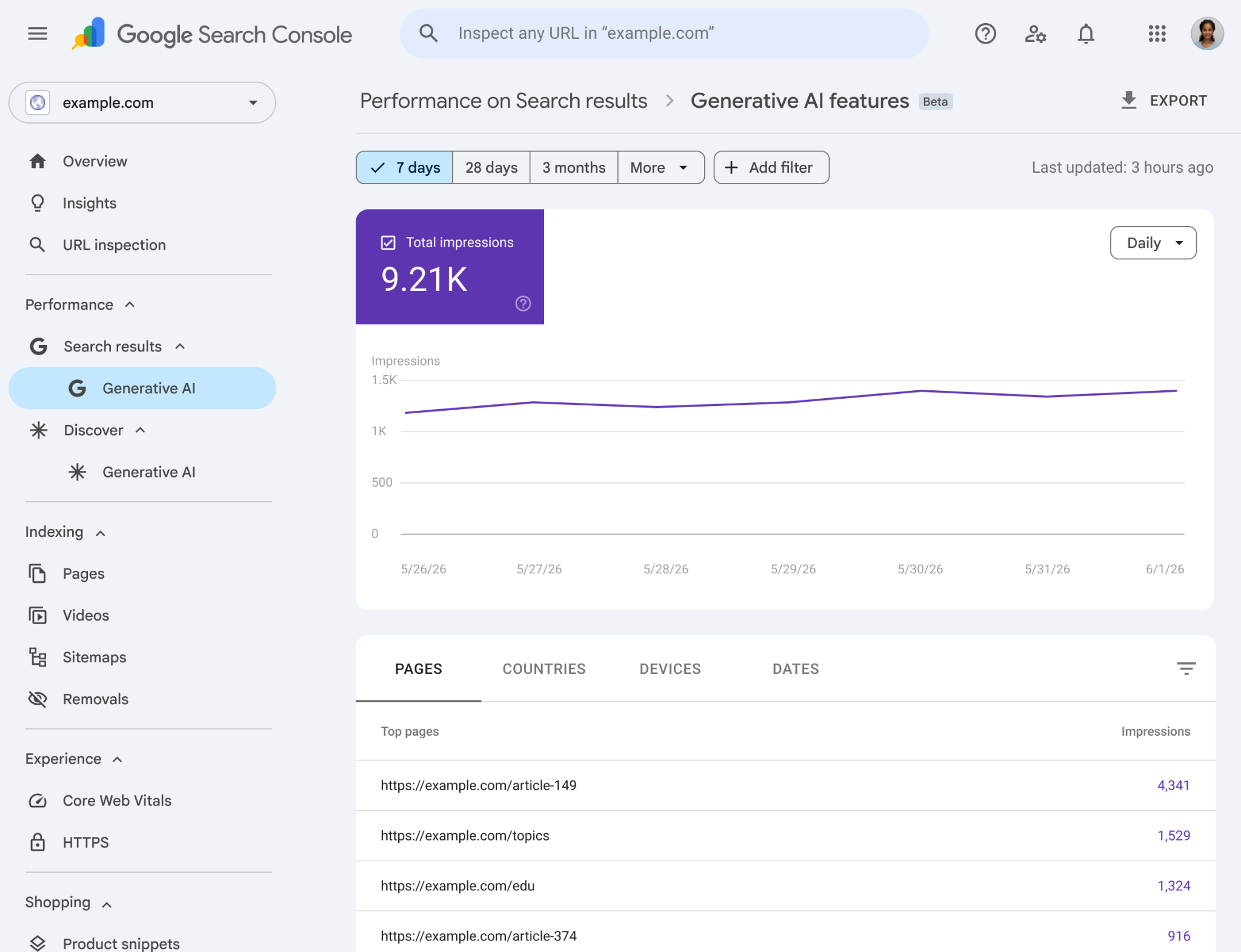
To help you understand how pages from your site are shown, our new reports show the following information:
- Impressions: How often URLs from your site appeared in generative AI features in Search and Discover.
- Pages: Check which URLs appeared within AI features.
- Countries: Understand your visibility on a country basis.
- Devices: Identify the devices people are using when seeing your website (available for Search results).
- Dates: Monitor your performance over time with hourly, daily, weekly, and monthly granularity.
Learn more about the data available in our help center documentation on the generative AI performance reports.
As always, we value your feedback: please let us know what you think using the "Submit feedback" link in Search Console, with the dedicated feedback form for these reports, or in the Google Search Central Community. We're continuing to work with website owners to understand what insights and data would be most helpful to inform their strategies, such as adding additional metrics over time.
Comments
Post a Comment